
A laptop that takes two minutes to boot and stutters when you open a browser tab feels like it's dying. Usually it isn't. Computers slow down over years as programs pile up, disks fill, and dust chokes the cooling — and almost all of that is reversible. Before you spend money on a new machine, work through this list in order. Each step is free or cheap, and the last one can make a five-year-old laptop feel genuinely new.
1. Cut down what starts with the computer
Over time, dozens of programs quietly add themselves to the startup list, all launching the moment you turn the machine on and all competing for resources. This is the number-one cause of slow boots and sluggish mornings. Open your system's startup settings and disable everything that doesn't need to run immediately — chat apps, updaters, “helper” utilities. You can always launch them by hand when you actually want them.
2. Free up disk space
A drive that's nearly full slows the whole system down, because it needs room to work in. Empty the trash, clear browser caches, and run the built-in disk-cleanup tool to sweep out temporary files. Uninstall the games and apps you no longer open. Aim to keep at least ten to fifteen percent of the drive free; crossing back over that line alone can lift a surprising amount of sluggishness.
3. Uninstall the bloat
Many laptops ship with trial software and manufacturer utilities you never asked for, and more accumulates as you install things. Go through your installed-programs list and remove anything you don't recognize or use. Fewer programs means fewer background processes, fewer update pop-ups, and less clutter fighting for memory.
4. Rule out malware
Sometimes “slow” is actually something running that shouldn't be. Run a full scan with a reputable security tool — your system likely already includes a capable one — to rule out malware or a misbehaving background process quietly eating your resources. If the machine got dramatically slower all at once, this is worth checking early.
5. Update the system (then stop chasing updates)
Install pending operating-system and driver updates; they often include real performance and stability fixes. Once you're current, let updates install on their own schedule and move on — constantly hunting for updates isn't the goal, being reasonably current is.
6. Clear the dust so it can breathe
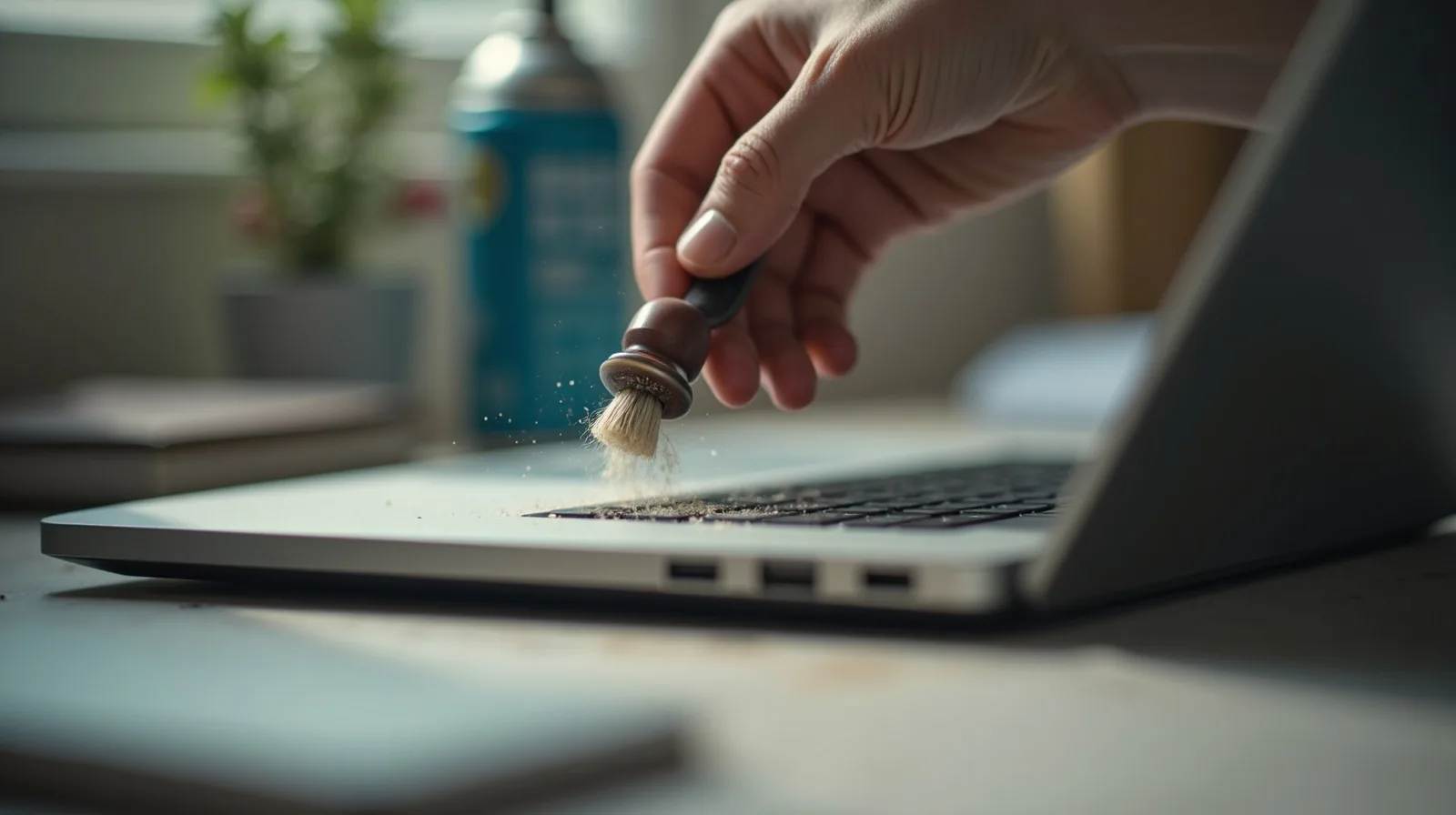
Here's the one people forget: a laptop clogged with dust runs hot, and a hot laptop deliberately slows itself down to avoid overheating. If yours runs hot or the fan is always roaring, carefully clearing the vents and fan of dust can restore performance that has nothing to do with software. Work gently and use short bursts of air rather than forcing anything.
7. The upgrade that changes everything: an SSD
If your laptop still uses an older mechanical hard drive, replacing it with a solid-state drive is far and away the biggest speed improvement you can make — often the difference between “time to replace this” and “this feels new.” Boot times drop from minutes to seconds. Adding more memory can help too if you keep many things open at once. These are modest, affordable upgrades on many machines, and they routinely buy years of extra life for a fraction of a new laptop's price.
When it really is time
If you've done all of this and the machine still can't keep up — or it's so old that current software won't run — then replacing it is fair. But most “dying” laptops aren't dying. They're just clogged, cluttered, and running on a slow disk, and an afternoon of the steps above brings them back.