
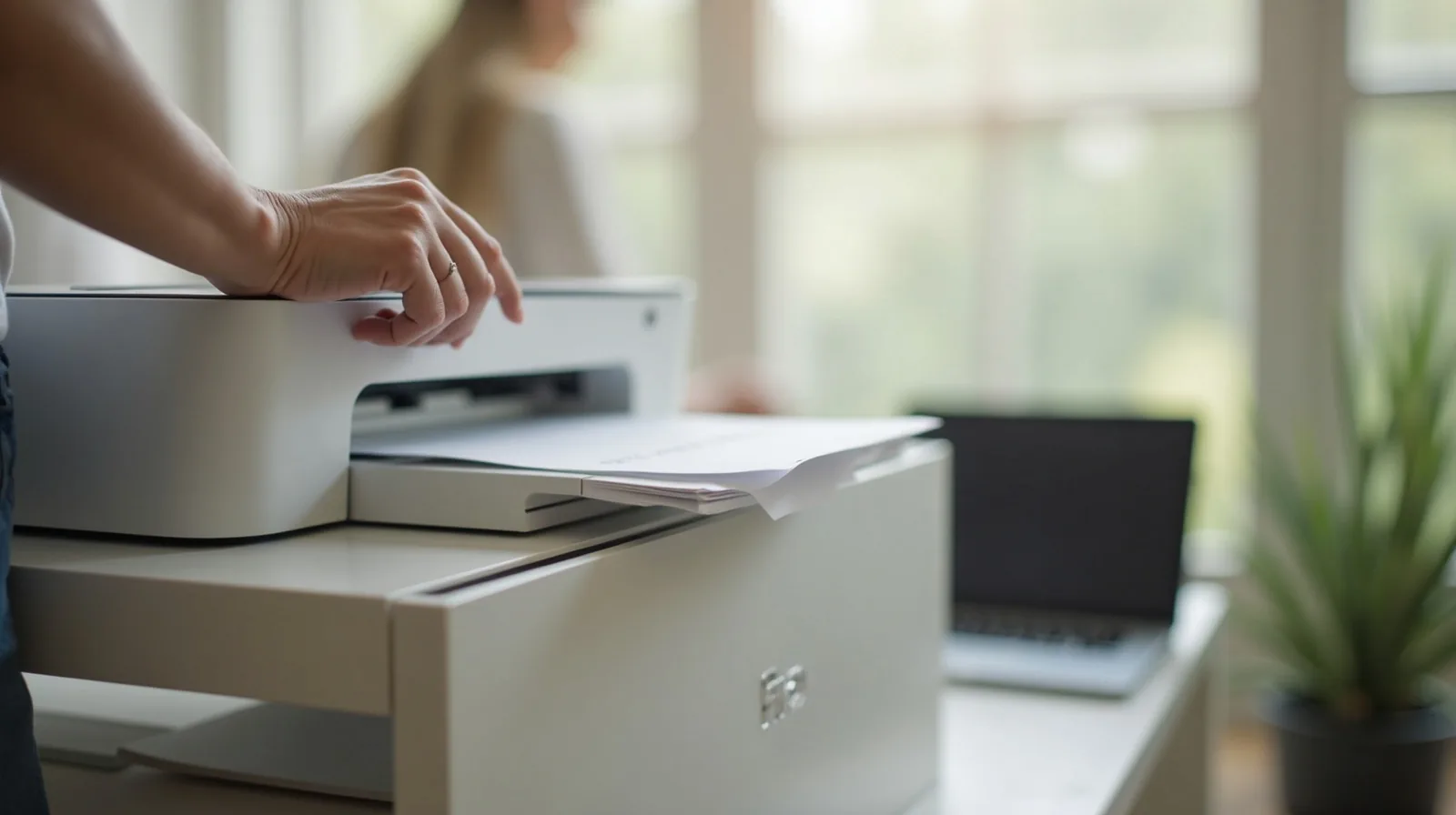
Almost everyone has a printer story: the boarding pass that had to be printed at 6 a.m. and wouldn’t connect, the form that jammed halfway through, the cartridge that turned out to be dried solid after months of disuse. Home printers have a reputation for unreliability that’s mostly earned — but not because the hardware is inherently bad. It’s because most printers get set up once, hastily, and then only asked to work under pressure, at the exact moment something goes wrong with the setup nobody checked on since. A proper one-time setup, plus a couple of habits, turns most printers boring in the best way.
Why It Keeps Failing
Printer trouble tends to come from the same handful of causes, over and over, across totally different brands and models.
- A shaky Wi-Fi connection. Many printers connect over Wi-Fi with weak signal strength or a connection that silently drops after a router restart, and never automatically reconnects.
- A jammed or stuck print queue. A failed print job sometimes sits in the queue and blocks every job sent after it, so nothing prints until that stuck job is cleared — and most people don’t know to look there.
- Dried-out ink from disuse. Inkjet printers rely on ink flowing freely through tiny nozzles; if the printer sits unused for weeks, that ink can dry and clog the print head, leading to streaky or missing colors.
- Outdated software or drivers. A printer or a computer that’s updated itself in the background can quietly break the connection between them until the driver is refreshed.
The One-Time Fixes That Actually Stick
Most of these problems have a permanent fix, not just a temporary one, if you’re willing to spend fifteen minutes getting the setup right instead of restarting the printer every time it acts up.
- Give the printer a fixed network address. Assigning it a static or reserved IP address through your router’s settings stops the printer’s address from changing after a router restart, which is one of the most common causes of a printer that “just disappears” from a computer’s list of devices.
- Clear a stalled print queue completely. If nothing is printing, open the print queue on your computer, cancel every pending job, and try again with a fresh single job rather than resending the same stuck one.
- Keep a spare set of ink or toner on hand. Running a printer completely dry and then leaving it that way for weeks is part of what invites clogs; having a spare cartridge means you can swap it the moment one runs low instead of leaving the printer empty.
- Update the printer’s software once, deliberately. Check for a driver or firmware update at setup time and again if problems start, rather than assuming it’s automatic.
Set It Up Once, Properly
The setup itself is worth doing carefully the first time rather than rushing through it to get one document printed.
- Use a wired connection for setup if you can. Connecting the printer directly during initial setup, even temporarily, avoids Wi-Fi hiccups getting baked into the very first configuration.
- Load paper straight and square. A stack that’s fanned before loading and pushed evenly against the tray guides is far less likely to jam or feed multiple sheets at once.
- Print something every week or two. Running even a single test page regularly keeps ink flowing through the nozzles and catches a clog early, before it needs a full cleaning cycle to fix.
- Use the right paper for the job. Standard paper is fine for text, but photos and glossy prints need paper rated for that purpose, or the ink won’t sit right and colors will look dull or smeared.
Laser or Inkjet: Match It to How You Actually Print
Part of the peace treaty is picking the right kind of printer for your household in the first place, since fighting the wrong tool for the job never really gets resolved.
- Mostly text, occasional documents, infrequent use: a laser printer. Toner doesn’t dry out the way liquid ink does, so a laser printer tolerates weeks of disuse far better — a strong match for a household that prints rarely.
- Frequent photos or color-heavy printing: an inkjet. Inkjets generally produce richer photo color, but they need more regular use to stay healthy, so this only makes sense if the printer will actually get exercised.
- Very occasional printing overall: consider skipping ownership. If printing happens only a few times a year, a nearby print shop or a library kiosk may cost less hassle than maintaining a printer that mostly sits idle.