
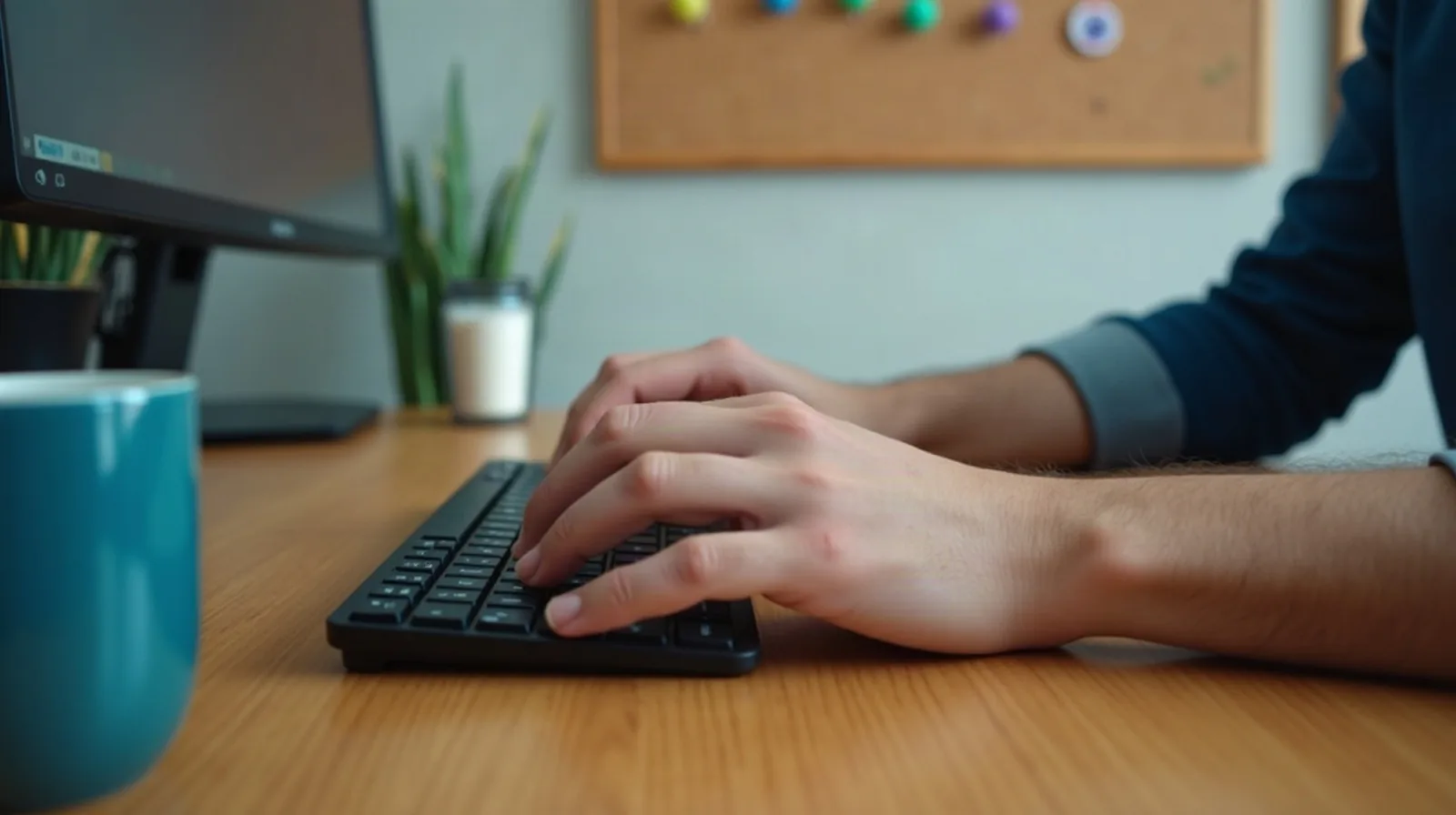
Most people use a computer for years without learning more than copy and paste. That’s a quiet tax: every trip from the keyboard to the mouse and back costs a second or two, and across a day of email, documents, and browsing it adds up to real time and a stiff wrist. A small set of keyboard shortcuts removes most of that, and none of them take more than a few repetitions to stick.
One note before starting: shortcuts below use the Ctrl key. On keyboards with a Command key, use that wherever Ctrl appears. Everything else works the same way.
Why Shortcuts Are Worth the Few Minutes
The mouse is great for exploring and awkward for repeating. A shortcut keeps your hands where they already are and turns a three-click trip through a menu into one motion. The payoff isn’t just speed, either. Fewer reaches for the mouse means less strain, and a fixed, predictable shortcut works the same in nearly every program, so what you learn once carries across your email, documents, spreadsheets, and browser.
The trap is trying to memorize a giant list. Lists don’t stick because nothing connects them to what you’re actually doing. The approach that works is small and specific: pick two or three shortcuts, use them on purpose for a week, and only then add more.
The Core Five: Copy, Cut, Paste, Undo, Select All
If you only learn five, make it these. They work in almost every program on almost every computer.
- Ctrl + C copies whatever is selected.
- Ctrl + X cuts it, removing it and holding it ready to paste.
- Ctrl + V pastes what you copied or cut.
- Ctrl + Z undoes your last action, and it’s the single most forgiving key combination on a computer. Deleted a paragraph? Dragged a file somewhere strange? Press it, and press it again to step back further.
- Ctrl + A selects everything on the page or in the document.
Two companions are worth adding right away. Ctrl + Shift + V pastes text without carrying over the source’s fonts and colors, which fixes the oddly formatted paragraph that appears when you paste from a web page. And Ctrl + Y (or Ctrl + Shift + Z, depending on the program) redoes whatever you just undid, so an overeager undo is never a problem.
Moving Around: Windows, Tabs, and Finding Things
The next batch is about getting where you’re going without hunting. Alt + Tab flips to the last window you used, and holding Alt while tapping Tab walks through the rest, a lifesaver when you’re bouncing between a document and a browser. Inside the browser, three combinations do most of the work:
- Ctrl + T opens a new tab, and Ctrl + W closes the current one.
- Ctrl + Shift + T reopens the tab you just closed by accident, a small miracle the first time it saves a half-written form.
- Ctrl + L jumps straight to the address bar so you can type a destination without clicking.
Then there’s Ctrl + F, which opens a search box on nearly any page, document, or spreadsheet. Instead of scrolling through a long article or a settings page, type a word and jump right to it. Used daily, this one alone pays for the whole learning effort.
Editing Text Without Touching the Mouse
Most of the time wasted on a computer is spent fixing text. A few cursor shortcuts turn that around. Holding Ctrl while you press the left or right arrow jumps the cursor a whole word at a time instead of a character at a time. Add Shift and the same motion selects those words, so Ctrl + Shift + Right Arrow highlights the next word, ready to delete or replace.
- Home and End jump to the start and end of the current line.
- Ctrl + Backspace deletes the previous word in one press.
- Ctrl + Home and Ctrl + End go to the very top or bottom of a document or page.
- Ctrl + B, Ctrl + I, and Ctrl + U toggle bold, italic, and underline in most editors.
If you write a lot of email, these are the ones that make a visible difference. Fixing a typo three words back stops being a click-and-aim exercise and becomes a quick tap-tap-fix.
Small Ones That Fix Big Annoyances
A few shortcuts solve problems you may have just been tolerating:
- Ctrl + S saves your work. Pressing it every few minutes by habit is the cheapest insurance there is against a crash or a dead battery.
- Ctrl + P opens the print dialog, which is also the quickest way to save a page as a PDF.
- Ctrl + Plus and Ctrl + Minus zoom a page in and out; Ctrl + 0 resets it.
- F5 or Ctrl + R refreshes a page that’s stuck or stale.
- F11 toggles full screen in most browsers, a nice way to shut out clutter when you’re reading.
It’s also worth finding your system’s screenshot shortcut. Searching your settings for “screenshot” will show it, and it’s far quicker than photographing the screen with a phone.
How to Make Them Stick
Knowing a shortcut and using it are different things, and the gap closes with a bit of structure rather than willpower.
- Pick three. Choose the three you’d use most today, probably undo, find, and reopen-closed-tab.
- Tie each to a trigger. “Whenever I want to find a word, I press Ctrl + F” works better than “I’ll try to use shortcuts.”
- Keep a tiny cheat sheet. Write the three on a card near the screen and swap in new ones after a week.
- Catch yourself reaching. When your hand drifts toward the mouse for something you know has a shortcut, stop and use the keys. The first few days feel slower; after that, it doesn’t.
Within a month, a dozen or so of these become automatic, and you stop noticing you’re using them. That’s the goal: not a bigger memory, just fewer wasted motions every day.