
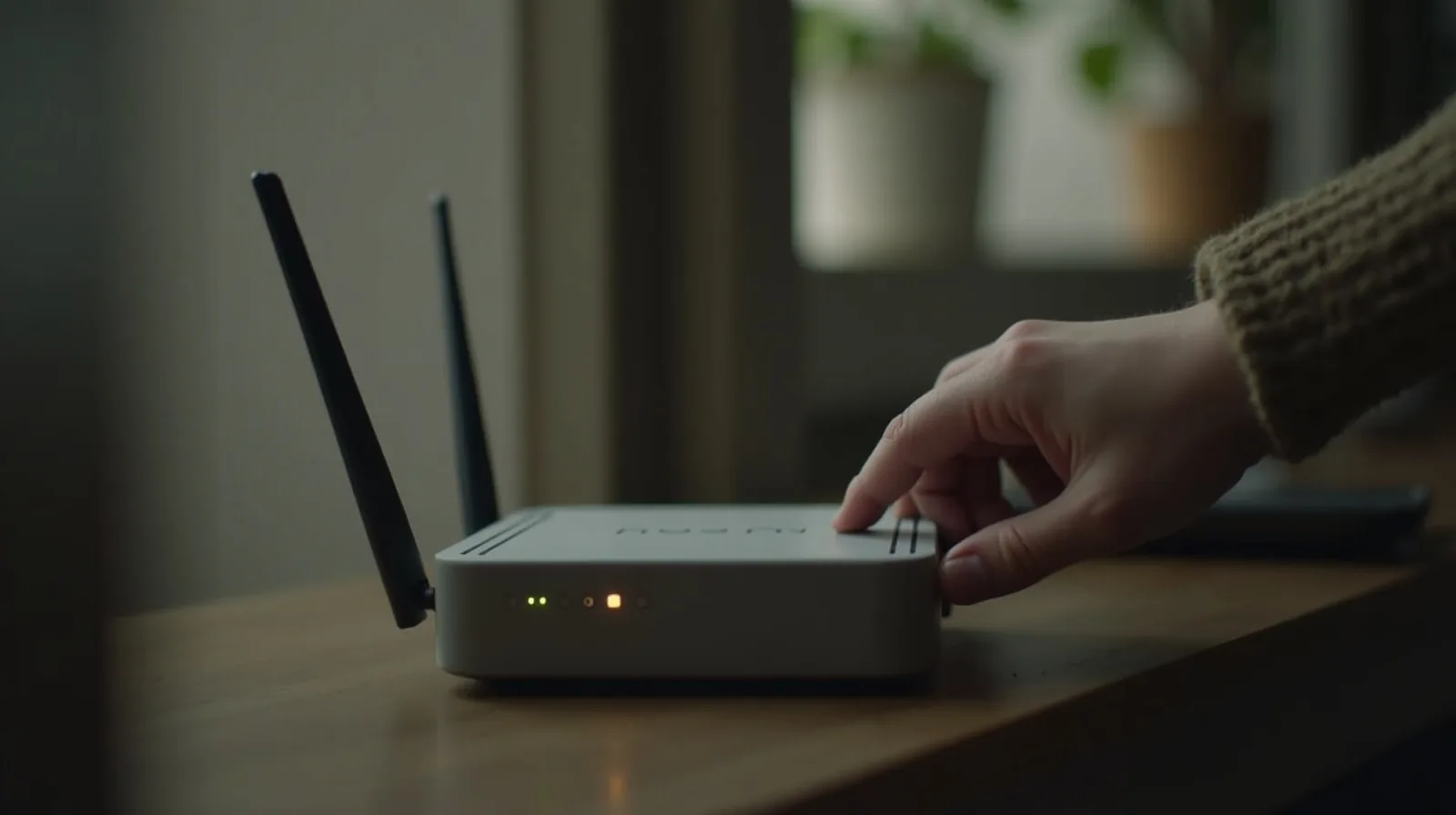
When the internet feels slow or keeps dropping, the instinct is to call the provider and pay for a faster plan. Often that's money wasted, because the bottleneck isn't your plan — it's your Wi-Fi, the wireless hop between your router and your devices. That part is largely under your control, and tuning it up costs nothing. Here's the free checklist to run before you upgrade anything.
Placement: the biggest free win
Where your router physically sits matters enormously, because Wi-Fi signal weakens with distance and gets absorbed by walls, floors, appliances, and especially water and metal. Most people hide the router in a corner, in a cabinet, or on the floor behind furniture — the worst possible spots. Instead:
- Central and high. Put it near the middle of your home and up off the floor — on a shelf, not in a basement corner — so the signal radiates evenly in all directions.
- Out in the open. Get it out of cabinets and away from thick walls, big metal objects, and other electronics that cause interference.
- Away from the microwave and cordless phones, which throw interference on the same frequencies.
Just moving the router from a closed cabinet to an open central shelf can transform coverage.
Use the right frequency band
Most modern routers broadcast two bands. The 2.4 GHz band reaches farther and through more walls but is slower and more crowded; the 5 GHz band is much faster but has shorter range. The practical rule: use 5 GHz for devices near the router that need speed (streaming, video calls), and let farther-away or less-demanding devices fall back to 2.4 GHz for reach. Many routers handle this automatically, but knowing the tradeoff helps you place things sensibly.
Change the channel if you're in a crowd
Wi-Fi broadcasts on channels, and in apartments or dense neighborhoods, everyone's routers pile onto the same few, causing congestion and slowdowns — like everyone talking on one frequency. If your connection is worst in the evenings when neighbors are all online, switching your router to a less-crowded channel in its settings can clear it up. Some routers auto-select the best channel; a manual change is a good lever when they don't.
The reboot that fixes more than you'd think
Routers are small computers, and like any computer they get bogged down over weeks of running — memory fills, connections snarl, performance sags. A simple reboot (unplug for thirty seconds, plug back in) clears all that and resolves a surprising share of “slow internet” complaints. If yours gets flaky, a periodic reboot — even on an automatic schedule — keeps it fresh. It's the “turn it off and on again” of home networking, and it genuinely works.
A couple of housekeeping items
- Keep the firmware updated. Router makers push updates that improve speed, stability, and — importantly — security. Enable automatic updates if your router offers them.
- Secure it. Use a strong Wi-Fi password and current encryption, both so neighbors aren't quietly leeching your bandwidth and for your own safety.
- Consider your hardware's age. If your router is many years old, it may not support current speeds no matter how you tune it — at that point new hardware, or a mesh system for a large home, is the real fix.
Run this tune-up before you spend a cent on a faster plan. Move the router to the center and into the open, pick the right band, dodge the crowded channel, and reboot when things get sluggish. Most “I need faster internet” problems disappear for free.