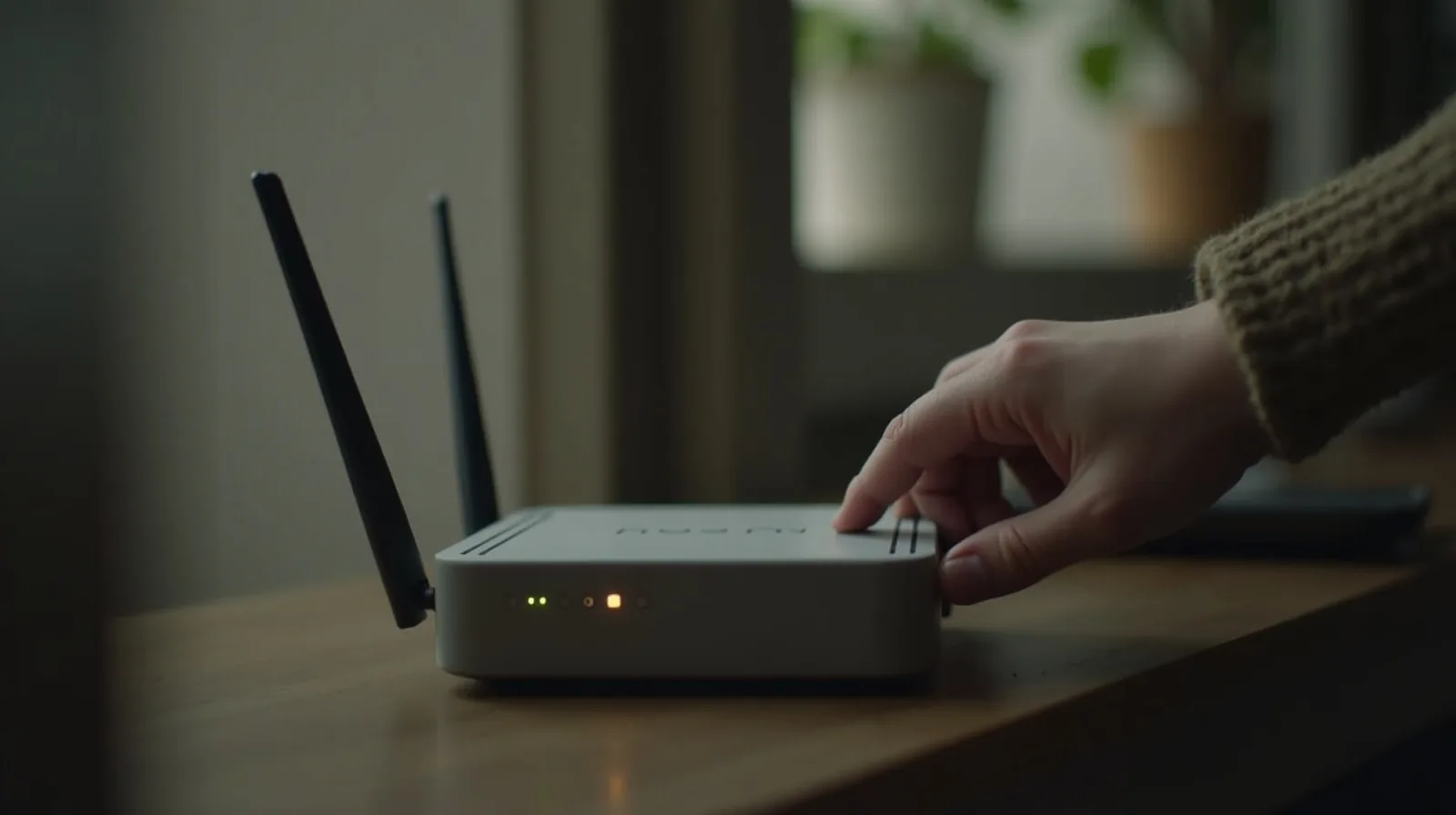

Setting up a home network usually means one thing: picking a Wi-Fi name and a password, then never opening the router's settings again. That's fine for getting online, but it leaves a handful of gaps wide open — not the dramatic, headline kind, but the quiet, default-settings kind that a curious neighbor or an opportunistic scanner can walk right through. None of the fixes below require technical skill. Most take a few minutes inside a settings page you've probably never visited.
Start with the admin login, not the Wi-Fi password
There are actually two passwords on a home router, and most people only ever think about one. The Wi-Fi password is what a device types in to join your network. The admin login is what controls the router itself — its settings, its security options, everything. That second one usually ships with a default username and password printed on a sticker on the router, something like a generic word paired with a simple number. Those defaults are public: they're documented online by make and model, which means anyone who gets onto your network — a guest, a neighbor riding your signal, anyone — can potentially log into the router itself and change anything they want.
Find your router's settings page (the address is usually on that same sticker, or in whatever app came with it), log in once with the default credentials, and immediately set a new admin username and a long, unique password. Write it down somewhere safe rather than trusting memory. This one change matters more than almost anything else on this list, and it's the step nearly everyone skips.
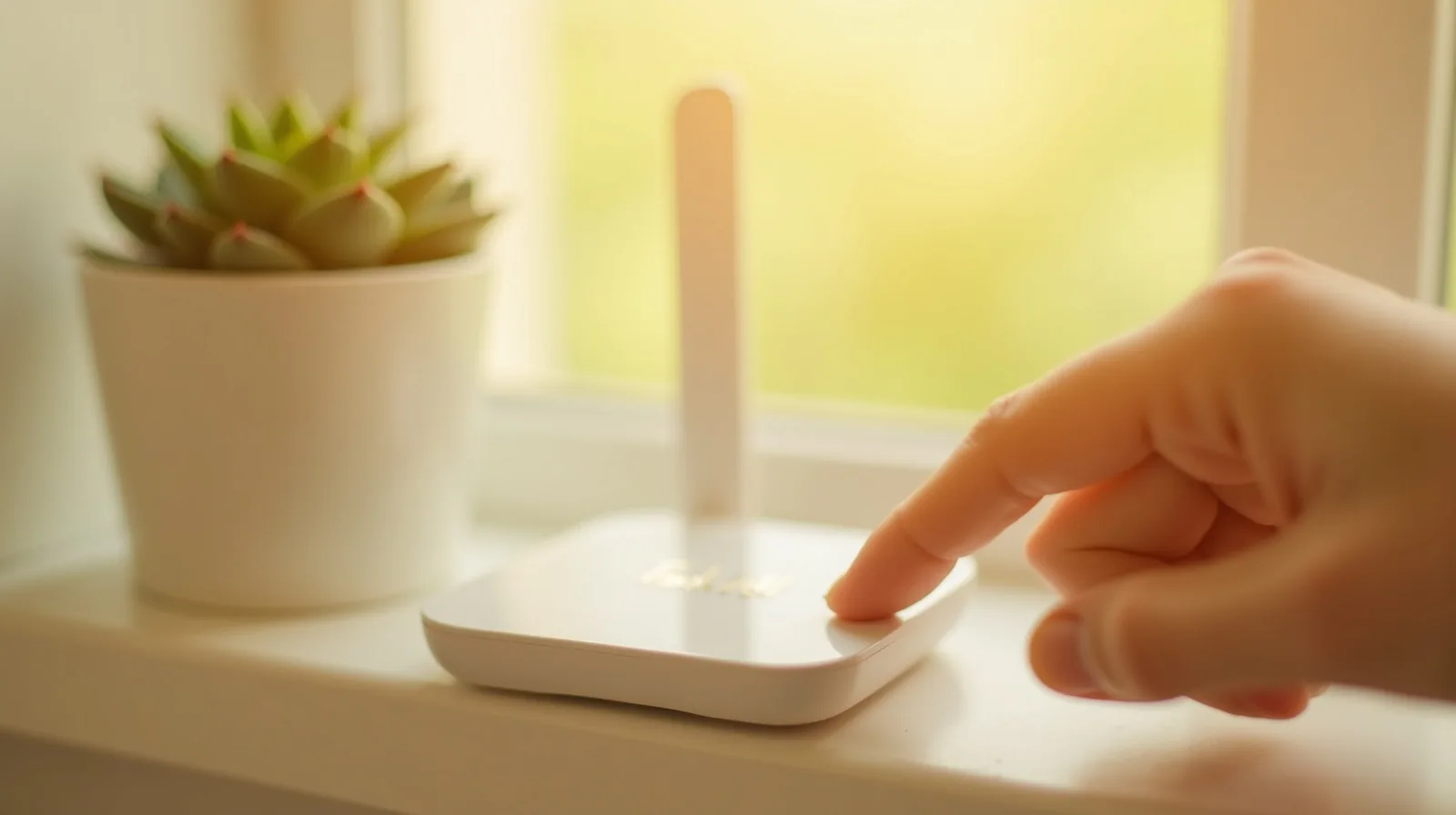
Use real encryption and a genuinely strong Wi-Fi password
Inside the same settings page, look for the wireless security or encryption option. It should say WPA2 or, on newer routers, WPA3. If it says WEP, or if the network is set to open with no password at all, that's a real gap — WEP is old enough that it can be cracked in minutes with freely available tools, and an open network lets anyone nearby join and see far more than you'd want.
For the password itself, length beats complexity. A long passphrase — several unrelated words strung together — is both easier to remember and harder to guess than a short jumble of substituted characters. Skip anything tied to your address, your name, or your birthday; those are the first guesses in any list.
Give guests — and smart devices — their own network
Most routers offer a guest network: a separate Wi-Fi name that gives visitors internet access without letting their devices see or touch anything else on your main network, like a shared printer or a computer with your files on it. Turning it on takes one settings toggle and is worth doing even if you rarely have visitors, because it solves a second problem too: smart-home gadgets — smart plugs, cameras, speakers, and the like — often have weaker built-in security than your phone or laptop. Putting them on the guest network, or a second dedicated network if your router supports one, keeps a compromised gadget from becoming a doorway to your more sensitive devices.
Let the router update itself
Router makers regularly release firmware updates that patch newly discovered security holes — the same way your phone and computer do. The difference is that a phone nags you to update; a router just sits there running old, patched software forever unless someone checks. Look in the settings for an automatic-update option and turn it on. If your router doesn't offer that, put a reminder on your calendar every few months to check for an update manually.
Turn off the convenience features that quietly widen the door
A few router features exist purely for convenience, and each one trades a little security for it:
- WPS (Wi-Fi Protected Setup) lets a device join with a button press or a short PIN instead of the full password — but that short PIN is much easier to brute-force than a real password. If you don't use it, turn it off.
- Remote administration lets you log into the router's settings from outside your home network. Useful for the rare person who needs it, but for most households it's an open door facing the entire internet. Leave it off unless you specifically set it up for a reason.
- UPnP (Universal Plug and Play) lets devices open ports on your network automatically, which is handy for some games and apps but can also be exploited to open doors you never approved. If you're not actively relying on it, disabling it is the safer default.
A five-minute device check, done twice a year
Most router apps and settings pages show a list of every device currently connected. Twice a year — tax season and, say, the start of summer are easy anchors to remember — scroll through that list. You're looking for anything you don't recognize: an unfamiliar device name, an old gadget you thought was long gone, or simply more devices than you can account for. If something looks off, that's your cue to change the Wi-Fi password (which automatically disconnects everyone until they re-enter it) and take a closer look at what's actually on your network.
None of this requires becoming a network administrator. Change the admin login, confirm real encryption and a strong passphrase, split off a guest network, let updates run automatically, switch off the handful of convenience features you don't use, and glance at the device list twice a year. That's the whole checklist — and it closes the gaps that actually matter, not the ones a router upgrade ad wants you to worry about.