Bluetooth trouble has a way of feeling personal — headphones that connected fine yesterday suddenly won’t pair, a speaker that shows up in the list but refuses to actually play sound, earbuds that connect to the wrong device every single time. It rarely means anything is actually broken. The vast majority of Bluetooth problems trace back to one of four causes, and there’s a reliable order of fixes that resolves nearly all of them without needing to replace anything.
Why It Won’t Connect
Before troubleshooting, it helps to know what’s usually actually happening, since the symptom looks the same — “it won’t connect” — no matter which of these is the real cause.
- It’s still paired to another device. Bluetooth accessories often auto-connect to the last device they successfully paired with, even if that device is out of the room; a phone across the house can silently steal the connection from the laptop sitting right in front of you.
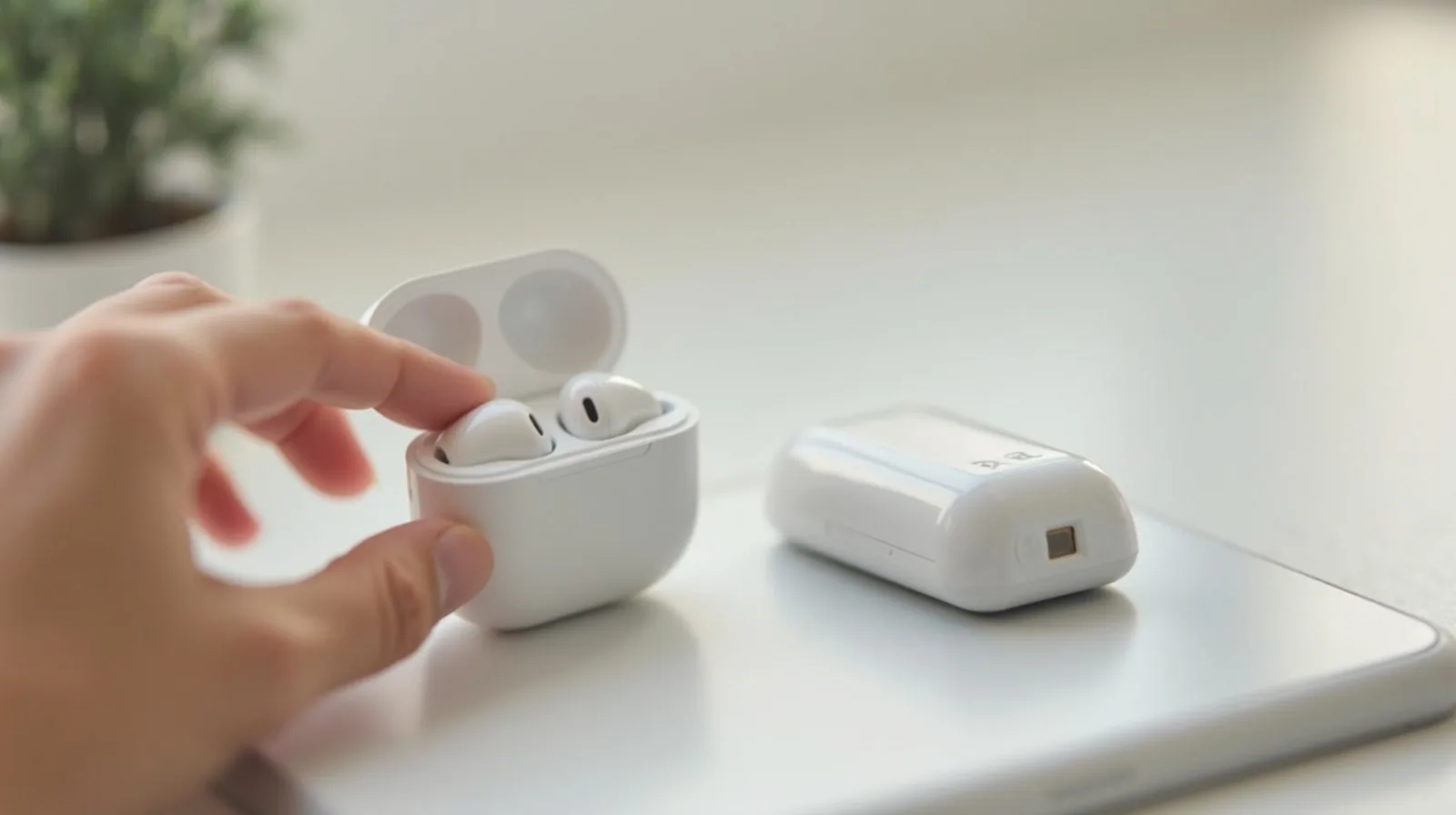
- It’s not actually in pairing mode. Most accessories need a specific action — holding a button for several seconds, opening a case a certain way — to enter pairing mode, distinct from simply being powered on.
- It’s out of range or low on battery. Bluetooth range is shorter than Wi-Fi, and a low battery can cause a device to behave erratically or refuse to hold a connection well before it fully dies.
- A stale connection needs a clean reset. Sometimes a device and an accessory have a corrupted memory of each other’s connection details, and no amount of retrying fixes it without clearing that memory first.
The Fix Order That Actually Works
Going through these roughly in order, from quickest to most involved, resolves the overwhelming majority of pairing problems without needing anything more drastic.
- Forget the device on both ends and re-pair from scratch. In the Bluetooth settings on the device you’re connecting from, find the accessory, choose “forget” or “remove,” then put the accessory into pairing mode and connect again as if for the first time. This single step resolves more Bluetooth issues than any other fix.
- Toggle Bluetooth off and back on. It sounds too simple to matter, but it resets the radio and clears a surprising number of temporary glitches.
- Reset the accessory itself. Most headphones, speakers, and earbuds have a reset method — often a long button hold, sometimes a specific sequence — that clears their internal pairing memory; check the accessory’s manual or manufacturer support page for the exact steps.
- Update both devices. A software update on either the accessory or the device you’re pairing it with can fix a compatibility bug that no amount of re-pairing will solve on its own.
- Reduce interference. Other wireless devices, thick walls, and even a crowded 2.4GHz Wi-Fi band can degrade Bluetooth reliability; moving closer or turning off an unused wireless device nearby sometimes clears up a connection that seemed hopeless.
Managing a Crowded Device List
Anyone who’s owned a phone for a few years accumulates a long list of paired devices, and that list itself can start causing problems — auto-connecting to the wrong thing, or simply becoming hard to navigate when you need to fix one specific accessory.
- Remove devices you no longer own or use. An old pair of headphones or a rental car’s system left in your paired list can occasionally interfere with a new connection attempt.
- Rename accessories with generic names. Multiple devices simply called “Headphones” or “Speaker” are easy to mix up when troubleshooting; a quick rename in settings makes the list far easier to manage.
A Word on Audio Lag
Separately from pairing, a slight delay between video and audio — lips out of sync with sound — is a different, usually unrelated issue, most common with cheaper accessories or older Bluetooth versions. Many devices have a “low latency” or “game mode” toggle in their companion app or settings specifically for this; enabling it for video and gaming, and leaving it off for music, is the usual solution.
It’s also worth knowing when a problem isn’t really a Bluetooth problem at all. If audio plays but sounds distorted or cuts in and out at a fixed distance, that’s usually range or interference rather than a pairing issue, and no amount of forgetting and re-pairing will fix it — moving closer or clearing obstructions is the actual answer. Recognizing that distinction early saves a lot of pointless resetting.